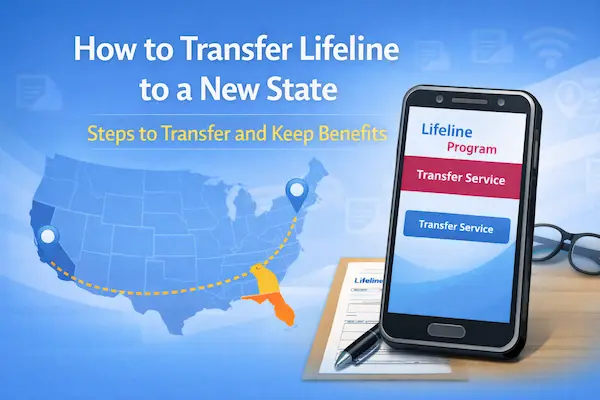
How to transfer Lifeline to a new state – Step by Step
To transfer Lifeline to a new state, you usually do two things.
You update your physical address, and you switch to a provider that serves your new location.
Think of it less like “moving a discount,” and more like “keeping your benefit valid while your address and provider change.”
Once you follow the steps below, you avoid the most common problems like duplicate address flags, household confusion, and address verification errors.
Independent guide notice: This tutorial is informational only.
It is not affiliated with, sponsored by, or controlled by the FCC, USAC, Lifeline Support, or any phone or internet company.
Rules, forms, and portal screens can change, so follow the instructions shown in the official portal and any notices you receive.
Transfer Lifeline to a new state: what stays the same
Your Lifeline benefit stays limited to one discount per household.
Your eligibility pathway still works the same way, meaning you qualify by income or by a qualifying program.
What changes is usually the provider, because many providers only operate in certain states or ZIP codes.
That is why planning the move before you switch anything saves you a lot of stress later.
Transfer Lifeline to a new state: Step-by-step (1–8)
1. Lock your new address
Write your new physical address exactly as it appears on your lease, mortgage, or utility bill.
Include the apartment number, unit letter, and correct ZIP code.
Decide your move date so you can time service activation smoothly.
Real example: You move on the 28th, but your lease starts on the 1st.
In that case, use the address where you truly live, not a temporary mailing address.
2. Confirm the household
At the new address, figure out whether you are joining an existing household or creating a separate one.
A “household” is about sharing money and expenses, not about being related.
If someone at the new address already receives Lifeline, a duplicate check may happen.
Real example: You move in with your sister, and she already has Lifeline at that address.
If you share groceries and bills, your home is typically one household, so you should not try to keep two benefits.
Real example: You rent a separate room, pay your own food, and do not share income.
That may count as a separate household, and you should be ready for a household worksheet request.
3. Check your current provider
Call your current Lifeline provider and ask one question first.
“Do you provide Lifeline service in my new state and ZIP code?”
If the answer is yes, you may be able to keep the provider and just update your address.
If the answer is no, plan to switch providers after you update your move details.
Real example: Your provider only serves one state.
In that situation, switching is normal, and you are not doing anything wrong.
4. Update your address fast
When your move is real, notify your provider about your address change.
Many program materials tell you to report changes like a move within 30 days.
Keep proof of your new address ready, because address updates can trigger a verification request.
Real example: Your driver’s license still shows the old address.
Use a lease or a utility bill that shows your name and the new physical address instead.
5. Choose the new provider
If you must switch, choose a Lifeline provider that actively enrolls customers in your new area.
Ask if they can initiate a benefit transfer to their company.
In many cases, the new provider starts the transfer process after you give consent.
Real example: You had a Lifeline phone plan, but now you want home internet at the new address.
Tell the new provider what service type you need, because offerings vary by company and area.
6. Give transfer consent
Expect a clear consent step when you switch companies.
That consent helps prevent two Lifeline benefits from being active at once.
Avoid trying to “keep both providers,” because Lifeline is limited to one benefit per household.
Real example: You want to keep the old plan “just in case” while starting the new one.
If you need overlap, use regular service temporarily, and transfer Lifeline only when you are ready to commit.
7. Plan for your phone number
If you use Lifeline for mobile service, ask about keeping your phone number.
Number transfers can depend on your location and the carrier’s coverage rules.
Prepare for the possibility of a new number when you move far away or to a new state.
Real example: Your bank sends one-time codes to your current number.
Update your important accounts before you lose access to the old number.
8. Confirm it’s active
After the address update or provider switch, confirm your Lifeline discount is active.
Check that calls, texts, or data work, or that your internet service is actually connected.
Save your confirmation details, like an application number or account notes.
Real example: The new provider says you must complete an eligibility check again.
Follow the official instructions, and keep a screenshot or note of what you submitted.
Documents you’ll need
You are not always asked to upload documents.
Still, moving increases the chance that you will be asked for proof, especially for address and household questions.
- Proof of identity, like a government-issued ID.
- Proof of address, like a lease, mortgage statement, or utility bill showing your name and your new physical address.
- Program proof, like a benefits letter or official document, if your eligibility is not confirmed automatically.
- Income proof, like a tax return, if you qualify by income and you are asked to document it.
- Household worksheet, if another Lifeline subscriber lives at the same address and you must show separate households.
If your income is variable, choose documents that tell a clean story.
A tax return often explains fluctuating income more clearly than many small pay statements.
How long it takes
Timing depends on whether your information verifies automatically or needs manual review.
- Filling out an online application: often around 10–15 minutes when you have everything ready.
- Online fixes for application errors: can update quickly when you submit the exact document requested.
- Mailing documents: usually takes longer because you add shipping time plus review time.
- Provider activation: can be same-day or take longer depending on the company and local availability.
If you must switch providers, ask the new provider what to expect, because activation speed varies.
Before you submit
Use this checklist to prevent delays that happen during moves.
- Review your legal name and match it exactly to your ID.
- Confirm your date of birth and any identity details you enter.
- Use your physical home address, not a PO Box.
- Avoid duplicate applications for the same person.
- Confirm your household at the new address, especially if you moved in with family or roommates.
- Prepare the household worksheet if someone at that address already has Lifeline.
- Upload clear images with full pages visible, no blur, and no cut-off edges.
How to check status
Status checks are easier when you keep your key details saved.
That usually means your login, your application number, and the exact error message if you see one.
- Sign in to the same official portal you used to apply or update your information.
- Open the area that shows your application progress or status.
- Look for messages requesting documents, address proof, or household clarification.
- Save your application number or confirmation details for support.
- If you are stuck, contact official Lifeline support and share your application details.
If the portal shows an error, treat it like a checklist.
Fix the exact issue shown, and avoid uploading unrelated documents “just in case.”
If you get denied
A denial usually means something could not be verified.
In many cases, you can correct the issue by submitting the right proof or fixing a mismatch.
Corrections that fix most move-related denials
- Address could not be verified.Upload a lease or utility bill that shows your name and the new physical address.
Make sure the address matches your application exactly, including unit numbers.
- Duplicate address or household issue.If someone at the new address already has Lifeline, complete the household worksheet if requested.
Keep your answers consistent with how you actually share income and expenses.
- Identity mismatch.Fix spelling differences, missing middle names, hyphens, or swapped digits in your birth date.
Then upload a clearer identity document if the portal asks for one.
- Program participation not confirmed.Submit an official benefits document that shows your name and current participation.
Use the most recent document you have available.
- Income proof needed.Provide a tax return when possible, especially if your income changes month to month.
Double-check that your household size matches what you claimed on the application.
- Switching providers caused confusion.Ask the new provider to confirm whether a transfer consent step is pending.
Confirm that only one Lifeline benefit is active for your household.
If you correct the exact denial reason and submit clean proof, approvals often become much more straightforward.