Lifeline BYOD guide: keep your phone and get discounted service
If you’re trying to keep your current phone and still get Lifeline savings, this Lifeline BYOD (bring your own device) guide will walk you through the practical steps that actually matter: compatibility, SIM/eSIM, activation, number transfer, and what to do when something goes wrong.
Lifeline is a federal program that lowers the monthly cost of phone and internet service for eligible households, but it doesn’t require you to use a provider-issued phone. In many cases, BYOD is the simplest way to get connected quickly—especially if you already have a working smartphone you like. :contentReference[oaicite:0]{index=0}
Independent guide: This article is not affiliated with the FCC, USAC, or any provider. Always verify plan and device terms on the provider’s official pages.
Quick links to get started fast
- Lifeline providers near me
- Compare Lifeline providers (coverage, data, phones)
- How to apply for Lifeline online
- Lifeline address verification (what counts as proof)
- How to check Lifeline application status
What BYOD means for Lifeline
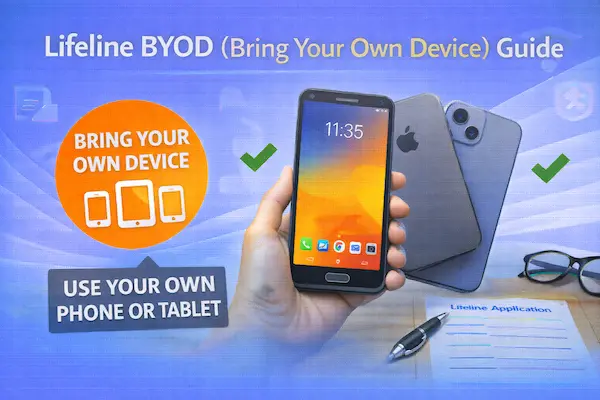
BYOD means you bring your own phone (or sometimes a tablet) to a Lifeline provider instead of using a device shipped by the provider. You keep your current phone number if you want, you keep your photos and apps, and you avoid the “which free phone model will I get” lottery.
This is especially helpful if you already have a newer device with better storage, a better camera, or 5G support, and you simply want government discount phone service for the monthly plan. Lifeline is often described as a lifeline discount phone service or a telephone lifeline program, because it’s a monthly discount applied to qualifying service, not a guaranteed phone model. :contentReference[oaicite:1]{index=1}
Why Lifeline BYOD is often the smartest choice
Many people default to searching for “free government phones,” but BYOD can be better in real life. Here’s why:
- Faster activation: you can often activate as soon as your SIM arrives (or instantly with eSIM in some cases).
- Better phone quality: your current phone may outperform typical entry-level devices.
- Less hassle: you avoid switching to a new device, learning a new layout, and reinstalling everything.
- More control: if you don’t like coverage or support, switching providers is simpler when you keep the same phone.
If you’re still comparing providers, it helps to start with compare Lifeline providers (coverage, data, phones) so you can choose based on network coverage first, not marketing.
Lifeline phone and internet: BYOD works for both
You’ll see people search lifeline program internet, lifeline broadband program, and lifeline phone and internet because Lifeline can support either phone service, internet service, or a bundled offering—depending on what providers offer in your area. :contentReference[oaicite:2]{index=2}
BYOD is most common for wireless phone plans (talk, text, data), but it also matters for home internet users who rely on a phone as their hotspot device. If hotspot is important to you, compare providers carefully before you enroll.
Step 1: Check if your phone is eligible for BYOD
Before you apply, do a quick reality check. Most BYOD failures come from one of these issues:
- Your phone is carrier-locked (it can’t accept another provider’s SIM).
- Your phone isn’t compatible with the provider’s network (bands, VoLTE, or certification issues).
- Your phone is flagged (reported lost/stolen, unpaid financing, or blocked IMEI).
Unlocked vs. locked: the easiest BYOD test
If your phone was purchased through a carrier on a payment plan, it may be locked until it’s paid off and unlocked. If it was purchased “factory unlocked,” BYOD is usually easy.
Practical tip: borrow a friend’s SIM from a different carrier. If your phone connects and can call/text, you’re likely unlocked. If it says “SIM not supported,” you’re probably locked.
VoLTE and “3G shutdown” compatibility
Most networks require VoLTE (Voice over LTE) for calling. Older phones that only support 3G calling may not work reliably, even if they can connect for data. If your phone is older than about 2017–2018, double-check.
eSIM vs. physical SIM
Some newer iPhones and Android models support eSIM. If your provider supports eSIM, activation can be faster. If not, you’ll use a physical SIM card mailed to you.
Step 2: Choose a Lifeline provider that supports BYOD in your area
The most important BYOD decision is not the phone—it’s the coverage where you live. Start locally and shortlist providers that actually serve your ZIP code.
If you live in a large state with big regional coverage differences, use a state list first:
- Lifeline providers in California
- Lifeline providers in Texas
- Lifeline providers in Florida
- Lifeline providers in New York
- Lifeline providers in Illinois
You’ll also see people search terms like verizon lifeline discount program or at&t lifeline phone. In practice, many Lifeline providers operate on major networks behind the scenes, but you enroll through the participating Lifeline company available in your location. :contentReference[oaicite:3]{index=3}
Step 3: Apply for Lifeline and select “Bring Your Own Device”
Most Lifeline enrollment goes through the National Verifier (a centralized eligibility system managed by USAC) or through a provider flow that connects to it. :contentReference[oaicite:4]{index=4}
Use this internal guide as your main application path:
During enrollment, look for a choice like “I have my own phone,” “Bring your own device,” “BYOP/BYOD,” or “Use my current device.” You may be asked for your phone’s IMEI (device ID) to confirm compatibility.
Step 4: Prepare your documents to avoid delays
BYOD doesn’t change eligibility rules, but it does make speed more important—because you’re trying to activate quickly. The two biggest time-wasters are address proof problems and unclear income/program documents.
If you qualify through benefits, these guides make it smoother:
- How to apply for Lifeline with SNAP (often searched as “EBT cell phone discount”)
- How to apply for Lifeline with Medicaid
- How to apply for Lifeline with SSI
Step 5: Track approval and timing
Approval timelines vary depending on automated verification and whether you’re asked for additional documents. Use these pages to stay in control instead of guessing:
Also note: the FCC periodically considers rule changes and enforcement updates related to eligibility verification and program integrity, which can affect how strict checks feel during enrollment. :contentReference[oaicite:5]{index=5}
Step 6: Activate service on your phone
Once you’re approved, the provider typically does one of the following:
- Sends you a physical SIM card and activation instructions.
- Provides an eSIM activation link or QR code (if supported).
- Asks you to call/visit a portal to complete activation.
Activation checklist for BYOD
- Back up your phone (photos, contacts, 2FA codes) before swapping SIMs.
- Turn off Wi-Fi briefly and confirm cellular signal appears after SIM insertion.
- Make a test call, send a test text, and test data.
- If data fails, check APN settings (providers usually provide the correct APN).
Keeping your number: BYOD porting tips
If you want to keep your current phone number, you’ll do a number transfer (“port”). This is where many BYOD setups fail, usually because of incorrect account details from the old carrier.
Before you port, gather:
- Your old carrier account number.
- Your port-out PIN or transfer PIN (many carriers require this now).
- The exact billing name and address on the old account.
Important: do not cancel your old service before the port completes. If you cancel early, the number can be lost.
BYOD troubleshooting: the fixes that solve most problems
Your IMEI is “not compatible”
- Confirm the phone is unlocked.
- Try a different Lifeline provider that uses a different underlying network.
- Check if your model is missing VoLTE support or required LTE/5G bands.
You have signal but no data
- Restart the phone after activation.
- Toggle airplane mode on/off.
- Check and update APN settings from the provider instructions.
- Confirm you have a data plan active (some plans are talk/text focused).
Calls/text work but MMS (picture messages) fail
- This is often an APN/MMS setting issue.
- Ensure mobile data is enabled for MMS.
- Ask provider support for the correct MMS APN fields.
Hotspot is missing or blocked
- Some Lifeline plans do not include hotspot by default.
- Some phones require a carrier profile update to enable hotspot.
- Compare providers if hotspot is a must-have feature.
If you chose a provider and the experience isn’t working out, switching can be a clean solution with BYOD because you keep the same device:
What if your application is denied?
Denials are usually fixable. The most common issues are address formatting mismatches, unclear documents, and household duplication problems.
Fix the exact reason first, then reapply. Randomly submitting multiple applications through different providers can create more confusion and delay.
BYOD and moving: keep service when you change states
When you move, your provider options can change. If you keep your phone but relocate, use these guides so your benefit stays clean:
BYOD for multiple family members
Lifeline is generally limited to one benefit per household, with specific exceptions and procedures for households with multiple eligible people. If your family situation is complex, read this before you enroll multiple lines:
Lifeline home phone service and BYOD
Not all Lifeline service is mobile. Some people still want lifeline home phone or lifeline home phone service options, especially for seniors or households that prefer a stable landline-style setup.
BYOD can still apply here if you’re using an existing compatible home phone device, but availability depends heavily on which providers serve your area and what service types they offer. Start with the provider locator and filter for what’s actually available locally. :contentReference[oaicite:6]{index=6}
How Lifeline minimum standards relate to your BYOD experience
Even though plans vary, Lifeline-supported services have minimum service standards that are evaluated and updated over time. Knowing this helps you identify plans that feel unusually weak for data or broadband. :contentReference[oaicite:7]{index=7}
If your main goal is internet access on your BYOD phone, focus on data allowances, network quality, and whether your plan supports your everyday needs like job applications, maps, healthcare portals, and school communication.
Provider reviews to help you pick a BYOD-friendly option
BYOD success is often about support quality and clean activation instructions. These internal reviews can help you compare expectations before you choose:
- Life Wireless Lifeline review
- SafeLink Wireless Lifeline review
- Assurance Wireless Lifeline review
- Q Link Wireless Lifeline review
- AirTalk Wireless Lifeline review
- TruConnect Lifeline review
- StandUp Wireless Lifeline review
Recertification: don’t lose your benefit after you activate
BYOD makes setup easier, but it doesn’t remove ongoing program responsibilities. Lifeline requires periodic recertification to confirm you still qualify. Missing it can interrupt your discount and service.
Common questions about Lifeline BYOD
Can I bring my own iPhone to Lifeline?
Yes, as long as it’s unlocked, compatible with the provider’s network, and not blocked. iPhones generally work well for BYOD, but eSIM support varies by provider.
Can I bring my own Android phone?
Yes, and it’s the most common BYOD path. The biggest issues tend to be carrier locks and missing VoLTE/band support on older or international models.
Does BYOD change my Lifeline eligibility?
No. Eligibility is based on income or qualifying programs and verified through official systems like the National Verifier. :contentReference[oaicite:8]{index=8}
Does Lifeline still help with internet now that ACP ended?
Lifeline can still apply to internet service where offered, but it is separate from the Affordable Connectivity Program, which ended after its final funded month in 2024. :contentReference[oaicite:9]{index=9}
Read also
- Best Lifeline providers near me (how to choose)
- Compare Lifeline providers (coverage, data, phones)
- How to apply for Lifeline online
Related content
- Lifeline address verification (what counts as proof)
- Lifeline income proof documents (examples)
- How to switch Lifeline providers
Bottom line
A strong Lifeline BYOD (bring your own device) guide boils down to five things: confirm your phone is unlocked, choose a provider with real coverage in your area, apply through the correct verification process, activate carefully (SIM/eSIM + APN), and keep your benefit active with recertification.
If you start with the provider locator and comparison tools, you’ll avoid the most common BYOD mistake: picking a provider first and only later discovering the network doesn’t work where you live.