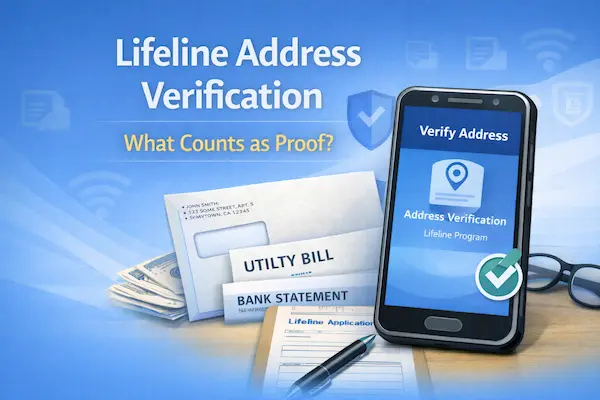
Lifeline address verification (what counts as proof)
If you get stuck on Lifeline address verification, it usually means the system could not automatically match your home address.
The fix is to submit proof of address that clearly shows your name and your physical address.
In many cases, you can also verify your location by using the official mapping tool to drop a pin on your home.
You do not need to overthink it, just need the right document type, in a clean upload, with matching address details.
Independent guide notice:
This tutorial is informational only.
It is not affiliated with, sponsored by, or controlled by the FCC, USAC, Lifeline Support, GetInternet, or any phone or internet company.
Rules and portal screens can change, so follow the official instructions shown during your application.
Lifeline address verification: what counts as proof
For Lifeline address verification, your proof must show your first and last name and your physical address.
If you are applying online and your address cannot be verified, you may be prompted to use the built-in mapping tool in the application.
If you are mailing documents, you can send in a map that clearly shows your address or location, including latitude and longitude coordinates in certain situations.
Also, your home address in the online flow cannot be a P.O. Box.
If you use a P.O. Box for mail, keep it as a mailing address when allowed, but use your real residential address for the home address question.
Examples of address proof that commonly counts
| Proof type | Good for | Common mistake |
|---|---|---|
| Utility bill (not from your internet company) | Recent movers and renters | Bill is blurry or name is missing |
| Mortgage or lease statement | Stable address situations | Address format doesn’t match application |
| Driver’s license or other valid government ID | When ID shows your current address | ID still shows your old address |
| Most recent W-2 or tax return | When your tax forms include your current address | Using an older year with an old address |
| Map showing your physical location | Rural addresses and “address not found” errors | No pin or unclear location markers |
If you live in a rural area, on Tribal lands, or in a place where addresses are not easily matched, the mapping tool and a printed map can be the fastest path.
When coordinates are required for a specific case, you want your documentation to make those coordinates easy to identify.
Lifeline address verification: Step-by-step (1–8)
1. Identify the exact problem
Start by reading the message you see in the portal.
Most address issues fall into “address not found” or “address not verified.”
Treat that message like your checklist title, because it tells you what kind of proof you should use.
Real example: You type your address exactly as you say it, but the system still flags it.
That often happens when the address is new construction, rural, or formatted differently in postal databases.
2. Use your real home address
Enter your home address as a physical location.
In the online flow, your home address cannot be a P.O. Box.
If you receive mail at a P.O. Box, keep that separate from your home address when the form allows it.
Real example: Your bills go to a P.O. Box, but you live in a duplex on a county road.
Use the street or 911-style address for the home address field, and keep the P.O. Box only for mail if requested.
3. Match your address format
Copy the address format from your strongest document.
Keep the same apartment number style, unit letters, directional words, and ZIP code.
Small differences can create mismatches, even when you are at the right place.
Real example: Your lease says “Unit 2-B,” but you type “Apt 2B.”
Pick one format and use it consistently everywhere you can.
4. Try the mapping tool first
If you apply online and get an address error, you are typically prompted to use the official mapping tool.
You drop a pin on your primary residence so the system can capture the coordinates of your location.
This is especially helpful for “address not found” situations.
Real example: You live on a long private road, and delivery drivers always call you.
Dropping a pin can verify where you live even when the street database is messy.
5. Choose the best proof document
If you must submit address proof, pick the document that makes your address easiest to read.
A lease or mortgage statement is usually clean.
A utility bill can be great too, as long as it is clear and shows your name and address.
Real example: You just moved and only have one utility bill so far.
That bill can work, as long as it shows your name and your current physical address clearly.
6. Handle recent moves the smart way
Moves create the most address problems, because your records can be out of sync.
If your ID shows your old address, do not assume it will work as address proof.
Instead, use a lease, mortgage statement, or utility bill tied to your new address.
Real example: Your driver’s license still shows your old apartment, but your lease shows the new one.
Use the lease for Lifeline address verification, and keep the ID for identity if requested.
7. Plan for rural and “not found” addresses
If the system cannot find your address, think like a map reader.
A printed map that shows your home location can help, especially when it includes a pin and coordinates.
For certain Tribal-related scenarios, coordinates may be required, so your map should make them visible.
Real example: Your home is identified by cross streets, not a standard street number.
A map with a clearly marked location can be easier to verify than trying five different spellings of a road name.
8. Submit cleanly and keep receipts
Upload or mail clear copies.
Make sure the full page is visible, with no cut corners and no glare.
Then save your confirmation details, such as your application number and any “received” message in the portal.
Real example: You upload a document and later you are asked again.
A saved confirmation helps you prove what you already submitted and when.
Documents you’ll need
You are not always asked to submit documents.
If the system cannot confirm your address automatically, you may be asked to show proof.
When that happens, having a small “address folder” ready makes everything faster.
- Proof of address that shows your first and last name and your physical address.
Examples include a utility bill (excluding your internet company), a mortgage or lease statement, or your most recent W-2 or tax return.
- Valid government ID, such as a driver’s license or other U.S. government, military, state, or Tribal ID.
This can help if it shows your current address, and it may also be requested for identity checks.
- Map documentation if your address is hard to match.
If you are mailing in a fix for an “address not found” issue, a printed map that clearly shows your physical location can help.
- Household documentation if a shared address creates a “duplicate” type issue.
If you live with another adult who receives Lifeline, you may be asked household questions or to complete a household worksheet.
How long it takes
Timing depends on whether your address verifies automatically or needs review.
The fastest outcomes happen when your address matches quickly or when you use the mapping tool successfully.
If you must submit documentation, the review timeline depends on how you submit it.
- If you submit information online to resolve an application error during business hours, it can be reviewed within minutes, with updates shown in the online portal.
- If you submit documentation by mail to resolve errors, a review decision may be sent by mail within about seven to ten business days after submission.
If you are trying to start service quickly, online uploads and clean, readable documents are your best friend.
Speed usually comes from clarity, not from sending more paperwork.
Before you submit
Use this checklist right before you click submit or seal the envelope.
It prevents the most common mistakes that trigger address verification problems.
- Confirm your home address is not a P.O. Box.
Use a real physical address for the home address field.
- Match your address format to your proof document.
Keep unit numbers and ZIP codes consistent.
- Check household reality if you share an address with other adults.
One benefit per household is the rule, so your answers must match real life.
- Avoid duplicate submissions for the same person.
Submit once, then track that same application.
- Use the mapping tool if the portal prompts you.
A correct pin drop can solve an “address not found” issue without extra paperwork.
- Inspect image quality before uploading.
If you can’t read it easily, the reviewer can’t either.
- Save confirmations like application numbers and upload receipts.
Those details make support calls much easier.
How to check status
Status checks work best when you separate two ideas.
One is your application status in the eligibility portal.
The other is your service status with your phone or internet company after you are approved.
- Sign in to the official portal you used to apply.
Look for messages, requests, or an “address documentation” status.
- Check whether the portal shows your upload as received.
If you mailed documents, track your mailing date and keep copies.
- Write down your application number.
That number is the fastest way for support to locate your record.
- If your eligibility is approved, contact your chosen provider to confirm they can enroll you at your location.
Approval is the eligibility step, and provider enrollment is the activation step.
- If you see an address error again, re-check your address format and proof type before submitting new files.
Fixing the same mismatch twice is the easiest way to lose time.
If you get denied
If you get denied for an address-related reason, it usually means one of three things.
Your proof did not show your name and physical address clearly.
Your address format did not match what you entered.
Or the system still could not confidently locate your home.
Corrections that fix most Lifeline address verification denials
- Your document does not show your full name.
Replace it with a proof document that clearly shows your first and last name and your address.
- Your document shows the address, but the image is hard to read.
Retake the photo in bright light, capture the full page, and avoid glare and blur.
- Your application address and document address don’t match.
Update the application address to match the document formatting, including unit numbers and ZIP code.
- You recently moved and used an ID with the old address.
Switch to a lease, mortgage statement, or utility bill that shows your current address.
- Your address is “not found” in the system.
Use the mapping tool to drop a pin on your home.
If you are mailing a fix, include a printed map that clearly identifies your physical location.
- Your shared address triggers household questions.
Answer household questions consistently with how you share income and expenses.
If requested, complete the household worksheet rather than guessing.
Once you correct the specific issue, resubmitting usually becomes straightforward.
You are not trying to submit more.
You are trying to submit the right proof in a way the system can verify quickly.