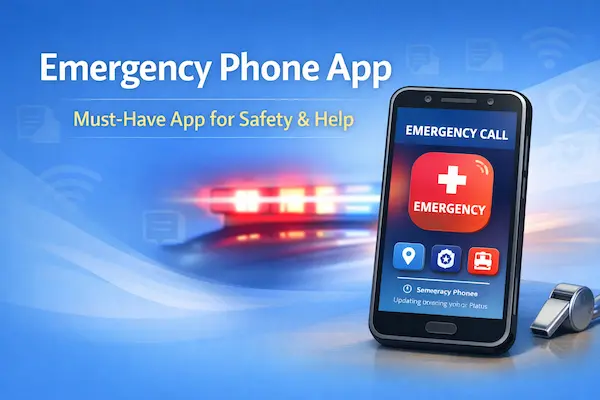
Emergency phone app: what it is and why you should set one up today
An emergency phone app is any tool on your phone that helps you get help faster, share your location, and receive urgent alerts.
In real life, it can be a built-in safety feature, an official alert app, or a simple setup that turns your phone into a better emergency companion.
The goal is not to panic-install something during a crisis.
The goal is to prepare now, so one tap can do what your brain might struggle to do under stress.
You’ll also avoid the biggest mistake people make.
They assume their phone is “ready” out of the box, and then discover missing settings when it matters most.
Here’s the promise of this guide.
You will leave with a clean setup, a clear checklist, and a simple way to confirm everything is working.
Independent notice: This article is informational and independent.
We are not affiliated with, sponsored by, or partnered with Apple, Google, FEMA, the FCC, wireless carriers, or any third-party app.
We do not control their features, availability, alerts, permissions, or how emergency services respond.
Wireless emergency alerts app: do you actually need an app for alerts
You do not always need a wireless emergency alerts app, because Wireless Emergency Alerts are typically delivered to compatible phones without downloading anything.
Those alerts can include severe weather warnings, AMBER Alerts, and other public safety messages that appear like text alerts.
Still, an app can be helpful when you want richer details, preparation guidance, and alerts for multiple saved locations.
That’s why people often search for the best app for emergency alerts even though the core alert system is already built in.
The smartest approach is to treat WEA as your built-in safety net.
Then you add an app only if it gives you extra value, like tracking multiple places or getting preparedness steps.
What to check in your alert settings
Your phone usually lets you control some alert categories, and the exact menu varies by device maker and carrier.
- Look for Emergency Alerts, Wireless Emergency Alerts, or Public Safety Alerts in your settings.
- Keep severe weather and public safety alerts enabled whenever possible.
- Review sound and vibration behavior so you can actually notice alerts at night.
- Understand that some national-level alerts may not be optional on many devices.
If you want to be extra careful, you can also confirm that Airplane Mode and “No Service” situations can prevent alerts from arriving.
That one detail explains why some people swear they “never get alerts,” especially during travel or outages.
Best app for emergency alerts: a checklist that keeps you safe
The best app for emergency alerts for you depends on what emergencies are realistic in your area and in your daily routine.
Instead of chasing hype, you can choose based on a simple trust-first checklist.
- Prefer official sources or well-known organizations that clearly explain how alerts are generated.
- Choose apps that support location-based alerts, not just generic national headlines.
- Look for options to save multiple locations if you have kids, parents, or a second workplace.
- Favor apps with clear privacy controls, especially if location sharing is involved.
- Make sure the app still provides useful information when data is slow or unstable.
An example many people use is an official emergency mobile app from a public agency that pulls weather alerts from trusted sources.
That style of emergency mobile app is often more reliable than random “scanner” apps with unclear data origins.
At the same time, you don’t want to install five different tools that all scream at once.
One strong alert source plus your phone’s built-in emergency features usually wins.
Emergency alert app for Android and iphone app emergency alert features you already have
If you searched emergency alert app for android, you may be surprised by how much is already built into modern Android phones.
Many Android devices include safety features that let you add emergency contacts and share updates during an emergency.
On iPhone, a similar idea exists through built-in Emergency SOS options and emergency contacts tied to your health and safety settings.
So when you think “iphone app emergency alert,” you might not need to install anything to start improving your readiness.
You simply need to switch on what is already there and test it once.
Also, an emergency alert system app android search often leads to the same reality.
Android’s system-level safety tools and emergency alerts are usually part of the operating system, not a separate download.
Two built-in moves that help immediately
First, set your emergency contacts and decide what you want shared if SOS is triggered.
Second, confirm how to trigger Emergency SOS on your exact phone model, so you do not learn it under pressure.
If you share a phone plan with family, treat this as a “household safety setup” and do it for everyone.
That one household habit can save minutes when someone is scared, injured, or disoriented.
Emergency contact app: build your personal emergency card on your phone
An emergency contact app can be a standalone tool, but your phone already supports the idea of emergency contacts and medical info.
The real win is creating a “digital emergency card” that stays accurate even when life changes.
Here’s what you want ready, in plain terms.
| Item | Example | Why it matters |
|---|---|---|
| Emergency contacts | Partner, parent, trusted friend | Someone can be reached fast |
| Medical notes | Allergies, conditions, medications | Helps responders and caregivers |
| Address basics | Current home address | Reduces confusion after a move |
| Key numbers | Doctor, pharmacy, insurance | Speeds up follow-up care |
If you recently changed your address, update it now in your emergency info.
If your income is variable and you change insurance or clinics often, update those details too.
Even though income is not part of emergency setup, that “life paperwork” reality is exactly why your phone must stay current.
Emergency phone tracker and emergency cell phone tracker: set up recovery and location sharing
An emergency phone tracker is not about spying on people.
It is about recovering a lost device, protecting your data, and finding a family member in a real crisis with consent.
When you see emergency cell phone tracker searches, people usually want one of two things.
They want to locate a misplaced phone, or they want to share location with trusted contacts during emergencies.
On iPhone, a common intent is emergency find my iphone, which points to Apple’s Find My features for locating devices.
On Android, similar device-finding and location-sharing features exist through Google’s safety and location tools.
The safest approach is to set this up with boundaries.
You choose who can see you, when they can see you, and what gets shared during SOS.
Then you test it once and confirm it behaves the way you expect.
How to Apply: set up your emergency phone app in 8 clear steps
This is the operational setup that turns “I should do this someday” into “I’m ready.”
You will follow eight steps, keep a short checklist, and confirm your status at the end.
Step-by-step (1–8)
- Decide your main goal, such as alerts, SOS sharing, device tracking, or all three.
- Turn on Wireless Emergency Alerts in your phone settings and confirm key alert categories are enabled.
- Choose one official alert tool if you want richer guidance, such as an emergency mobile app that supports multiple locations.
- Set up Emergency SOS on your phone and learn the exact button sequence for your device.
- Add your emergency contacts and choose what information to share, like live location and updates.
- Enable location permissions for the safety feature or app, and set it to allow access during emergencies.
- Configure device recovery tools, such as Find My on iPhone or the Android equivalent, so a lost phone can be located.
- Run a safe test, confirm alerts and permissions, and write down what you will do in a real emergency.
If you travel often, repeat the location step for your usual destinations so you are not surprised by missing alerts.
If someone in your household uses a different phone brand, do the setup separately because menus and SOS behavior can vary.
If you manage safety for a parent, practice the SOS trigger with them calmly so it feels familiar later.
Documents you’ll need
You will not need “documents” in the legal sense, but you will need accurate information ready to type.
- Your current address and any common alternate location, like work or school.
- Two to four emergency contacts with correct phone numbers and relationship notes.
- Basic medical information, such as allergies, conditions, and key medications.
- Doctor, pharmacy, and insurance contact details if you want a complete emergency card.
- Your phone’s login or recovery setup, like passcode and account access, for device tracking tools.
If you changed your number recently, update your contacts and account recovery details first.
If your household shares devices, confirm each person has their own emergency contacts configured.
How long it takes
You can complete a basic emergency setup in about 10 to 15 minutes.
A full setup with location sharing, device tracking, and multiple alert locations usually takes about 25 to 40 minutes.
If your phone needs system updates, budget extra time so you are not configuring features mid-update.
Once done, maintenance is quick.
You typically spend two minutes every few months updating contacts and verifying settings after major OS updates.
Before you submit
This is your trust checklist, and it prevents the “I set it up but it didn’t work” problem.
- Verify your emergency contacts are correct and reachable.
- Confirm your address and key medical notes are accurate and easy to understand.
- Check that location permissions are enabled for the safety feature you plan to use.
- Review alert sound settings so you can hear urgent alerts even at night.
- Avoid duplicate alert apps that create confusion with repeated notifications.
If anything feels unclear, simplify the setup rather than adding more apps.
In emergencies, clarity beats complexity every time.
How to check status
You can check status by confirming your alerts, your permissions, and your location-sharing readiness.
- Open your alert settings and confirm Wireless Emergency Alerts are enabled.
- Open your safety feature and confirm your emergency contacts are listed correctly.
- Check your location settings and confirm the safety feature is allowed to access location.
- Open your device-finding tool and verify your phone appears as an active device.
- Do a safe “dry run” of the SOS steps without placing a real emergency call.
If you are setting up multiple phones in one household, check status on each device separately.
That is especially important when one phone is Android and the other is iPhone.
If you get denied
You might feel “denied” when an app refuses to work, permissions are blocked, or a feature is not available on your model.
In most cases, you can fix it with a clean troubleshooting flow instead of reinstalling everything blindly.
- If permissions are denied, go to settings, enable location and notifications for the app, and try again.
- If alerts do not arrive, confirm you have cellular signal, that Airplane Mode is off, and that alerts are enabled.
- If your app setup fails, make sure your phone software is updated and the app is from an official store listing.
- If SOS is not triggering correctly, re-check your device’s SOS button method and practice the correct sequence.
- If device tracking is not available, confirm your account is signed in and the “Find My” or equivalent feature is enabled.
If a feature still does not appear, it may be restricted by region, carrier settings, or device model.
In that case, your best move is to rely on built-in emergency calling and your phone’s core alert settings while you research alternatives.
Emergency apps for smartphones: a simple “two-layer” safety setup
You do not need a huge collection of emergency apps for smartphones to be safer.
You need a two-layer setup that works even when you are tired, stressed, or distracted.
Layer one is built-in alerts and built-in SOS features.
Layer two is one trusted app that adds value, such as multiple-location alerts or step-by-step guidance during disasters.
That’s how you build a reliable emergency phone app system without turning your phone into a noisy mess.
Once you finish setup, do one last thing for your future self.
Create a short note that says what you will do first in an emergency, and keep it pinned or easily accessible.
When your brain is overloaded, that tiny plan can keep you moving in the right direction.