
How to upgrade your Lifeline phone in 2026
If you are searching for how to upgrade your Lifeline phone, you are usually trying to do one of three things.
You might want a newer device because your current phone is slow, has a broken screen, or cannot hold updates anymore.
You might want better coverage, more data, or a plan that feels closer to modern government discount cell phone plans.
Or you might simply want to keep your number and move your Lifeline benefit to a provider with better phone options.
This guide walks you through realistic upgrade paths that work in the real world, including keeping your current provider, switching providers, and using BYOD so you can bring your own device.
Important: Lifeline is a discount program. Phone models, upgrade offers, and device availability are controlled by providers and can vary by state and ZIP code.
Quick links to save time
- Compare Lifeline providers (coverage, data, phones)
- Lifeline providers near me
- How to switch Lifeline providers
- How to update your Lifeline information (address, name)
- Lifeline recertification deadline (how to complete)
What “upgrade” means with Lifeline
Upgrading your Lifeline phone can mean upgrading your device, upgrading your service plan, or both.
It helps to separate these because Lifeline is a lifeline discount phone service benefit applied to service, while the phone itself is usually a provider promotion or a device you buy and use with your SIM.
That is why you may see Lifeline described as a lifeline telephone service program or a telephone lifeline program, and why “upgrade rules” differ from one provider to another.
If you want the cleanest upgrade experience, you usually get better results when you start by comparing providers and coverage first, then choosing the device path that fits your budget.
Use this page to compare service and phone patterns side by side: compare Lifeline providers (coverage, data, phones).
Before you upgrade, check these 7 things
Most upgrade headaches are caused by small account issues that people do not notice until after they buy a phone or request a transfer.
Do this quick checklist first.
- Make sure your Lifeline benefit is active and you are not near a lapse or de-enrollment risk.
- Confirm you are not due for recertification (or complete it if you are). Use: Lifeline recertification deadline (how to complete).
- Check your application status if you recently applied or switched: how to check Lifeline application status.
- Verify your address is correct, especially apartment numbers and spelling: how to update your Lifeline information (address, name).
- Know your coverage reality where you live and work, because a new phone will not fix a weak network.
- Avoid duplicate household issues by making sure your household is enrolled correctly: Lifeline enrollment for multiple family members.
- Back up your phone (photos, contacts, authenticator apps) before any SIM swap or number transfer.
If you ever had an enrollment denial, fix the reason first so your upgrade does not become a paperwork loop: Lifeline application denied (common reasons and fixes).
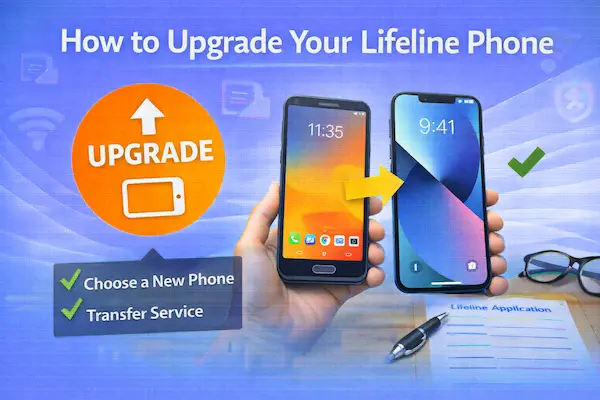
Upgrade option 1: Keep your provider and upgrade the device
This is the most common upgrade path because it usually lets you keep your phone number, your plan, and your account setup.
If your provider supports it, you can upgrade in three ways: buy a phone from them, bring your own phone, or use a retailer/manufacturer phone and activate it with your Lifeline SIM.
1A. Ask your provider about device upgrade offers
Some Lifeline providers offer discounted devices, limited-time upgrade bundles, or replacement options if you have been active for a certain period.
Because policies differ, the best way to compare the “real experience” is to read a provider review before you spend money.
- Assurance Wireless Lifeline review (often searched alongside “Assurance upgrade” questions)
- SafeLink Wireless Lifeline review
- Q Link Wireless Lifeline review
- AirTalk Wireless Lifeline review
- TruConnect Lifeline review
- StandUp Wireless Lifeline review
- Life Wireless Lifeline review
If you see “upgrade phone” language that sounds too good, look for the exact terms like “based on availability,” “refurbished,” “equivalent model,” or a required copay.
1B. Bring your own device (BYOD) and keep your Lifeline line
BYOD is often the fastest way to upgrade your device while keeping service, especially if you already have a phone you trust.
In practice, this is how many people move from older android government phones to a newer smartphone without changing anything else.
BYOD upgrades usually look like this.
- You buy an unlocked phone (Android or iPhone) from a store, online retailer, or directly from the manufacturer.
- You move your current SIM into the new phone, or you activate an eSIM if your provider supports it.
- You test calls, texts, and data, and update APN settings if needed.
If you are upgrading from a very old device, confirm it supports VoLTE and modern network requirements, because calling can fail on devices that do not meet network standards.
1C. Keep your number while upgrading your phone
When you upgrade the device but keep the provider, your phone number usually stays the same automatically because your Lifeline service is tied to your SIM/eSIM and account.
Still, protect yourself by writing down your account PIN (if applicable), backing up contacts, and confirming you can log into your email and two-factor apps before the swap.
Upgrade option 2: Switch Lifeline providers to get a better phone or plan
If your current provider has weak coverage, slow data, or limited phone choices, switching can be the best “upgrade” even if you keep the same device.
People often discover that the biggest improvement comes from better network performance, not from a slightly newer handset.
Start by checking local options here: Lifeline providers near me.
Then narrow it down with: compare Lifeline providers (coverage, data, phones).
When you are ready to move, follow this so you do not trigger duplicate enrollment problems: how to switch Lifeline providers.
When switching is the smartest upgrade
- Your coverage is weak inside your home or workplace.
- Your data runs out too fast and you need a plan that fits modern usage.
- You want a provider that is clearer about phone inventory, replacements, and support.
- You need a plan that better supports lifeline program internet usage through mobile data or hotspot.
If you are switching primarily for internet access, pay attention to how a provider handles data, throttling, hotspot, and network congestion, because a “better phone” does not help if the plan is limited.
Upgrade option 3: Transfer Lifeline when you move to a new state
If you move, your new address can change which companies offer Lifeline service where you live.
That can become an opportunity to upgrade, because a new state may have more provider options and better device promotions.
Use this guide if you relocated: how to transfer Lifeline to a new state.
Then update your account details immediately: how to update your Lifeline information (address, name).
If you skip these steps, you can run into verification delays later, especially during recertification or when requesting a replacement phone.
Upgrading your Lifeline plan can matter more than the phone
Many people search how to upgrade your Lifeline phone when what they really need is a plan upgrade.
For example, you may need more data for job applications, telehealth, school portals, or maps, and your phone itself is fine.
When your goal is connectivity, it helps to evaluate Lifeline as a government discount phone service option and ask which provider offers the most usable plan for your daily life.
Some users prefer a provider that offers a lifeline phone and internet style bundle, while others need a mobile plan that makes the most of the lifeline broadband program concept through data access.
To compare plans and coverage quickly, use: compare Lifeline providers.
Home phone and landline upgrades still exist in some areas
If you are using Lifeline for a home phone line, your “upgrade” might not be a smartphone at all.
Some households still prefer lifeline home phone options for stability, medical calls, or senior-friendly simplicity.
You may also see searches like lifeline home phone service, lifeline phone landline, and even free landline phone service for low income.
In many areas, Lifeline can be applied to a wireline plan, but availability depends on local providers and what they offer in your ZIP code.
If you are considering switching from landline to mobile (or vice versa), start by checking what is actually offered near you: Lifeline providers near me.
SNAP, EBT, Medicaid, and SSI users: upgrade without breaking eligibility
If you qualified through benefits, upgrading your phone does not change your eligibility by itself, but your paperwork still matters.
People often describe this as an ebt cell phone discount path, because SNAP is a common eligibility route and many users think of Lifeline through their EBT card.
If you need to apply again, switch providers, or fix an account, these guides help you do it cleanly:
- How to apply for Lifeline with SNAP
- How to apply for Lifeline with Medicaid
- How to apply for Lifeline with SSI
If your upgrade plan involves switching providers, keep your documents ready, because you may be asked to confirm identity or address again.
These two pages prevent the most common delays:
Major-brand searches: Verizon Lifeline, AT&T Lifeline, and what they really mean
Many users search for verizon lifeline discount program or at&t lifeline phone because they want a familiar carrier.
Sometimes, major brands offer Lifeline discounts directly in certain contexts, and sometimes the Lifeline provider you enroll with uses a major network behind the scenes.
Either way, you should choose based on coverage and plan details where you live, not just a brand name.
Start local, then compare: compare Lifeline providers.
Do not confuse Lifeline with employee discounts
It is also common to see people mix Lifeline with a federal employee phone discount or a cell phone discount for federal employees.
Those employee discounts (when available) are not the same as Lifeline, and the rules are different.
If you are a federal employee and also eligible for Lifeline, ask the carrier or provider whether discounts can be combined, because many plans require choosing one savings path.
Upgrade troubleshooting: fixes that solve most problems
Your new phone has no service after a SIM swap
First, restart the phone and confirm the SIM is seated properly.
Then test calls, texting, and data separately, because sometimes only data fails due to APN settings.
If you switched providers, confirm the number transfer (port) completed and that your old line was not canceled early.
Your upgrade triggers an application issue
If you are asked to re-verify and you get stuck, do not submit random applications to multiple providers.
Instead, check status and respond to the exact request:
If you receive a denial, fix the reason using: Lifeline application denied (common reasons and fixes).
Your household hits the “one per household” problem
If another person at the same address already has Lifeline, a new enrollment can be blocked unless your household situation is documented correctly.
Use this guide before you switch or reapply: Lifeline enrollment for multiple family members.
You are worried about losing service later
The most common surprise is recertification.
Set a reminder and follow the official steps when you get a notice: Lifeline recertification deadline (how to complete).
State-by-state provider options can change your upgrade choices
If you want better device options or a smoother upgrade experience, your state matters because provider availability is regional.
Use a local list to narrow down providers that actually serve your area:
- Lifeline providers in California
- Lifeline providers in Texas
- Lifeline providers in Florida
- Lifeline providers in New York
- Lifeline providers in Illinois
If you want a broader “how to choose” framework, use: best Lifeline providers near me (how to choose).
Step-by-step: how to upgrade your Lifeline phone without losing service
- Decide what “upgrade” means for you: new device, better coverage, more data, or all three.
- Check local provider options using Lifeline providers near me.
- Compare coverage and plan details with compare Lifeline providers.
- Choose your upgrade path:
- Keep provider and move SIM to a better phone (BYOD upgrade).
- Request a device upgrade/replacement from your provider.
- Switch providers for better coverage or better phone options using how to switch Lifeline providers.
- Prepare documents so verification does not delay you:
- Complete any required enrollment steps using how to apply for Lifeline online and keep Lifeline application step by step open as a checklist.
- Activate and test: call, text, data, and hotspot (if you use it).
- Protect your benefit by staying current with recertification and updating changes using how to update your Lifeline information.
Read also
- Compare Lifeline providers (coverage, data, phones)
- How to switch Lifeline providers
- How to transfer Lifeline to a new state
Related content
- How to check Lifeline application status
- Lifeline application denied (common reasons and fixes)
- How long does Lifeline approval take
Bottom line
The best way to approach how to upgrade your Lifeline phone is to upgrade strategically.
Coverage and plan quality often matter more than the device, and BYOD upgrades are usually the fastest path if you already have access to an unlocked phone.
If you need better options, switching providers can be the most powerful upgrade, as long as you do it correctly, keep your documents clean, and stay current with recertification.